Pythone Gui Framwork (Tkinter)
1. What is GUI ?
- GUI stands for Graphical User Interface.
- A GUI allows users to interact with a computer using graphics instead of text commands.
- There are several types of modules used to create GUIs.
2. What is Tkinter ?
- A representative module is Tkinter, which is commonly used in Python.
- Tkinter is atomatically installed with Python.
- Tkinter development typically follows steps :
- Create the main window.
- Create and connect UI elements and event-handling functions.
- Arrange the UI layout.
- Start the main event loop.
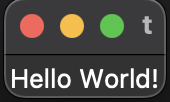
Example 1 : make a lable
1
2
3
4
5
6
7
8
9
10
11
12
13
import tkinter as tk

#1.make a root window
import tkinter as tk

#1.make a root window
root = tk.Tk()
#2.display text
label = tk.Label(root,text = 'Hello World!')
#3.Execute label placement
label.pack()
#4 Execute main loop
tk.mainloop()
Example 2 : make a button
1
2
3
4
5
6
7
8
9
10
11
12
import tkinter as tk

root = tk.Tk()

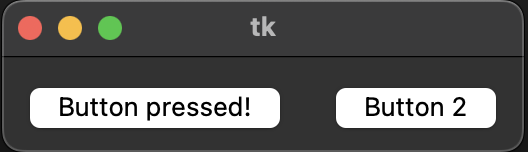
def event():
    button['text'] = 'Button pressed!'

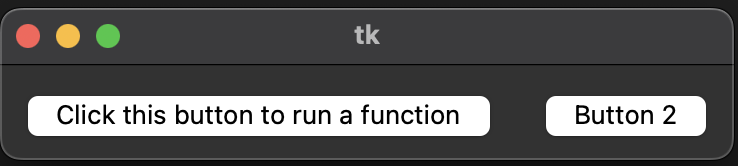
button = tk.Button(root, text='Click this button to run a function', command=event)
button2 = tk.Button(root, text='Button 2')
button.pack(side=tk.LEFT, padx=10, pady=10)
button2.pack(side=tk.LEFT, padx=10, pady=10)
root.mainloop()
Example 3 :
- tk.Entry – for user input
- tk.Button – to trigger actions (save and display)
- tk.Label – to show the result
- .get() – to retrieve text from the Entry
- .delete() – to clear the Entry field
- .config() – to update the Label text dynamically
1
2
3
4
5
6
7
8
9
10
11
12
13
14
15
16
17
18
19
20
21
22
23
24
25
26
27
28
29
30
31
32
33
34
35
36
37
38
39
40
41
42
43
import tkinter as tk

# List to store input values
saved_values = []

# Save button logic
def press_button():
    value = entry.get()
    if value:
        saved_values.append(value)
        entry.delete(0, tk.END)

# Show all saved inputs
def show_all():
    result = "\n".join(saved_values)
    result_label.config(text=result)

# Set up GUI window
root = tk.Tk()
root.title("Example 3 - Entry Input Demo")

# Instruction label
label = tk.Label(root, text="Enter a value:")
label.pack()

# Entry input field
entry = tk.Entry(root)
entry.pack()

# Save button
save_button = tk.Button(root, text="Save", command=press_button)
save_button.pack()

# Show all button
show_button = tk.Button(root, text="Show All", command=show_all)
show_button.pack()

# Result display label
result_label = tk.Label(root, text="", fg="blue")
result_label.pack()

# Run the application
root.mainloop()
This post is licensed under CC BY 4.0 by the author.